Mask shows deleted regions after running through volume tools

Dear All,

I’m not sure what I’m doing incorrectly here. I downloaded an ab initio map to create a mask for subsequent NU-refinement. I opened the map in chimerax, blurred it with a gaussian filter, erased a cloud of noise, noted down the contour level where there is the shape I want and no dust shows, resampled the mask to the original map, saved the mask, uploaded it to CryoSPARC, and finally, ran it through volume tools with the following parameters:
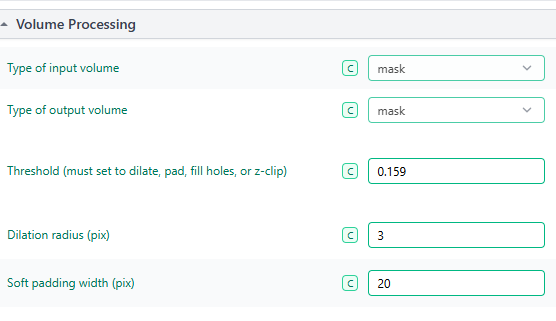
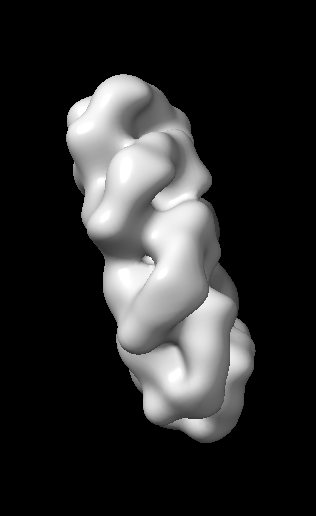
The mask this volume tools job produces has the noise cloud that I’ve erased via chimeraX.
Here they are for comparison:

the mask after running through volume tools:
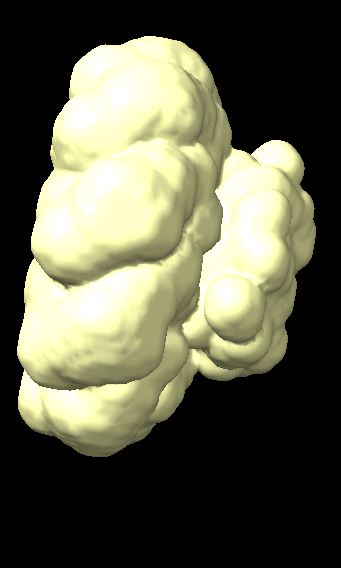
my mask after filtering, erasing, and resampling, before running it through volume tools
im not sure what’s going on. Any help would be greatly appreciated. I’ve been learning to use masks for a while, but some issue or another pops out all the time, so I haven’t been able to successfully use a custom mask that I’ve made bfore. Perhaps there’s a basic step that I’m missing out on or something I’m misunderstanding? Any advice or help would be greatly appreciated.

Thanks in advance,

this is the event log for reference if it would help:

Loading volume /scratch/project_######/mask_file_name.mrc

[CPU:  207.5 MB]
Loaded volume with box size 128

[CPU:  238.8 MB]
Input mask center of mass (x,y,z):

[CPU:  238.8 MB]
(66.45, 64.15, 63.93) voxels (at input box size)

[CPU:  238.8 MB]
(185.01, 178.61, 177.99) Angstroms

[CPU:  238.8 MB]
 ---------------------

[CPU:  238.8 MB]
  Filtering to: 0.000

[CPU:  238.8 MB]
 Resampling to: 128

[CPU:  238.8 MB]
   Cropping to: 128

[CPU:  238.8 MB]
     Flip hand: False

[CPU:  238.8 MB]
 ---------------------

Original volume

[png]
[pdf]
J280_original_volume.png
[CPU:  259.3 MB]
Processing...

[CPU:  259.3 MB]
Thresholding, dilating, padding and filling holes.

Final volume

[png]
[pdf]
J280_final_volume.png
[CPU:  305.7 MB]
Output mask center of mass (x,y,z):

[CPU:  305.7 MB]
(65.90, 63.39, 63.69) voxels (at output box size)

[CPU:  305.7 MB]
(183.48, 176.50, 177.34) Angstroms

[CPU:  305.7 MB]
Saving volume /scratch/project_######/J280_mask.mrc

[CPU:  305.7 MB]
Done in 4.08s

[CPU:  305.7 MB]
--------------------------------------------------------------

[CPU:  305.7 MB]
Compiling job outputs...

[CPU:  306.0 MB]
Updating job size...

[CPU:  306.0 MB]
Exporting job and creating csg files...

[CPU:  306.0 MB]
***************************************************************

[CPU:  306.0 MB]
Job complete. Total time 4.21s```

Hi @newbie,

A few things:

  1. Have you re-opened your uploaded mask in a fresh chimerax session to make sure it still looks the way you want it to? Sometimes I have had issues with this where I have accidentally saved the wrong number map in chimerax and am just resaving the original volume blob again and again. This will also help if “hide dust” is actually hiding volume, since hide dust is a visualization tool but doesn’t change the underlying map.
  2. Try uploading as a map instead of a mask. Mask > Mask can often have issues, especially if the import is actually a map. You can usually tell the difference because masks are binarized, whereas maps are not. If you open them in chimerax, in the volume viewer (where you change the threshold) you can see a map will look like a 2D image of a mountain from the side, whereas a mask will look like a series of vertical lines.

If you could re-open the input to your volume tools job in a fresh chimerax session, and don’t do anything but change the threshold to the threshold you’re using in the job, and give an image of that, we may be able to help troubleshoot further. Good luck!

2 Likes

Hi @tlevitz

Thank you so much for your reply!

I was doing almost everything you pointed out- except I was using the volume eraser to remove the dust and not the hide dust button, so at least that was alright.

Turns out I had uploaded the wrong file. I was re-downloading my mask to check it, but I was getting mixed up with the file names, so I was ‘checking’ the wrong file. I am wondering how people name the volumes they download in the most efficient way. At this point I have tens and tens of .mrc files but I still haven’t figured out a systematic way to name them.

After I got the correct file uploaded, changing the volume tools parameters to ‘map > mask’ fixed it.

Thanks again for your help!

Great – glad it was an easy fix. We’ve all been there before!

For naming, I am sure everyone has their own system, but I keep all the downloaded files as their CryoSPARC given names, and then try to add on to that with some descriptor of what I just did. For example,

cryosparc_P649_J121_005_volume_map.mrc

could become

cryosparc_P649_J121_005_volume_map_erased_noise_1.mrc

or something, so that I can try 1, 2, or 3 with different amounts erased. It’s also good to just double-check once the import completes that what you think you put in there looks like how it should (cross-section and volume-wise), but that will be a skill acquired somewhat over time.

3 Likes